No-Install Tools for Shrinking Logs, JSONs, and PDFs Before Sharing
Shrink log archives, JSON exports, and PDF reports before attaching them using free browser tools. No install, no sign-up, no friction.
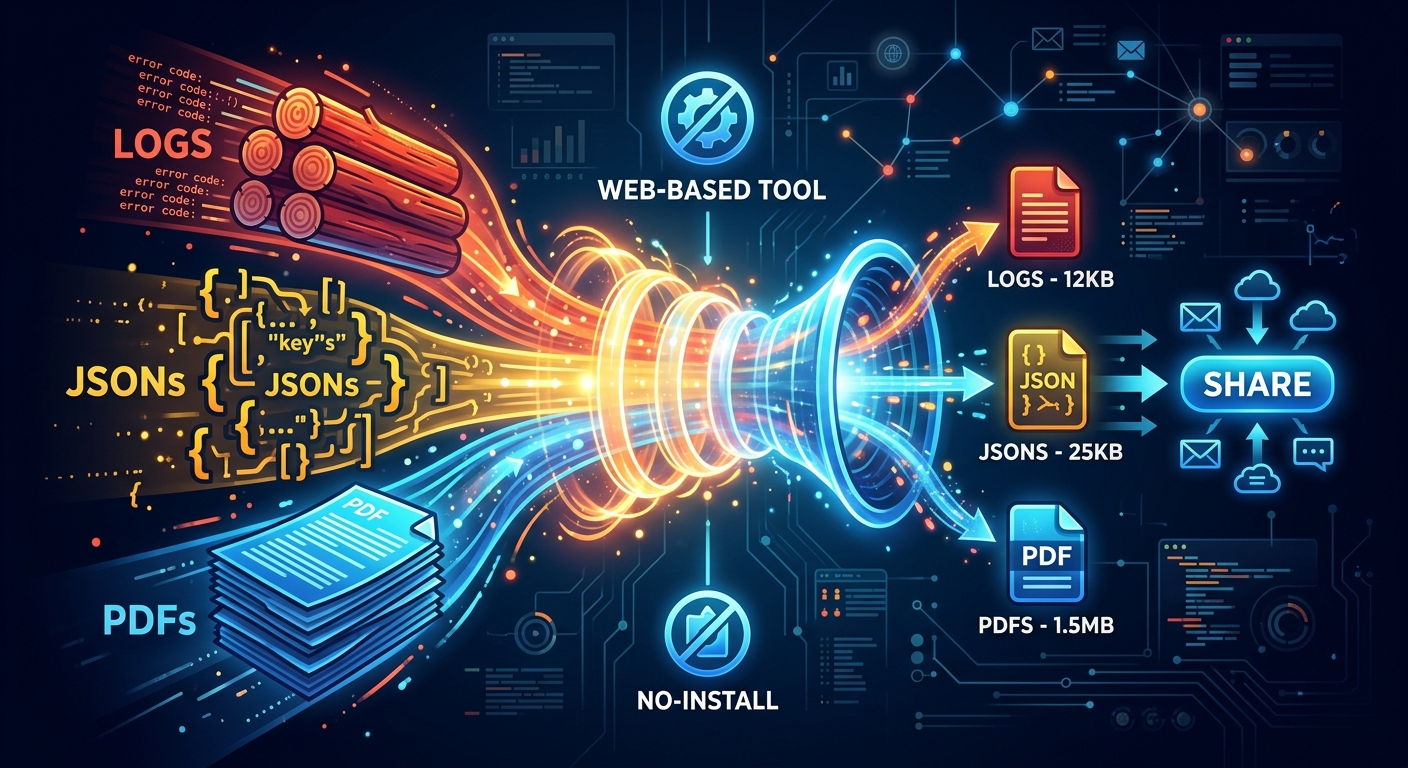
You are wrapping up a production incident at 11 PM. The log archive is ready. The JSON export from your observability stack is sitting on your desktop. The PDF incident summary is freshly generated from your runbook template. You go to attach all three to the client ticket, and the upload fails. File too large. Every sysadmin and developer has been here. It is one of those small frictions that kills momentum at exactly the wrong moment, and it is completely avoidable. The fix takes under two minutes per file, entirely in a browser, with nothing installed on the machine you are working from.
The Short Version
- Log archives, JSON exports, and PDFs all hit size limits for different reasons and need different fixes
- Browser-based compression tools handle all three without any installation or account creation
- Minifying JSON before compressing it produces a smaller output than compressing pretty-printed JSON directly
- A 15 MB PDF report with embedded screenshots can often be reduced to under 4 MB in a single browser upload
- Client-side processing tools keep your files off third-party servers, which matters when the content is sensitive
The Size Problem That Slows Down Every Handoff
Attachment size limits are a constant in the developer and sysadmin workflow. Most email providers cap attachments at 10 MB or 25 MB. Ticketing platforms like Jira, Zendesk, and ServiceNow often enforce their own limits, sometimes stricter. File portals used for client deliveries frequently have per-file caps that nobody reads until they hit them. These limits were set when files were smaller. They were not designed around modern log volumes, telemetry JSON exports, or multi-screenshot PDF summaries.
The mismatch is structural. Log archives grow with traffic. JSON exports grow with retention windows. PDFs grow with every embedded dashboard capture or error screenshot a sysadmin drops in to support their findings. None of these file types self-limit to fit a 10 MB cap. That job falls on the person attaching the file, usually at the tail end of a task they are already trying to close.
Browser-based compression tools close this gap without adding anything to a machine. You open a tab, upload the file, download the result. The sections below cover what actually works for each file type, and why the approach differs across all three.
Shrinking Log Archives Below Their Default Compression Output
Log files are plaintext, which makes them outstanding candidates for compression. Most systems already output log archives in compressed formats like .gz or .tar.gz. The part that catches people off guard is that default compression settings prioritize speed, not size ratio. They are tuned for performance on a live system, not for producing the smallest possible file.
The gzip format specification defines nine compression levels, ranging from 1 to 9. Level 1 is the fastest and least aggressive. Level 9 takes longer but produces the smallest output. Most system defaults sit around level 6. Pushing to level 9 in a browser-based tool can reduce a plaintext log archive by an additional 10 to 25 percent compared to the default output, and on a 30 MB archive that is a real difference.
Browser-based log compression tools let you upload an existing archive, select a higher compression level, and download the result. For sysadmins working on a client system under a restricted account, or on a shared machine where they cannot install utilities, this approach is genuinely faster than recalling the right flags. There is no terminal required. Upload, adjust the level, download.
One thing to do before uploading: if your archive contains multiple log files, bundle them into a single tarball first. Compressing individual files separately and sending them one by one loses ground compared to compressing a single bundled archive. Compression algorithms find patterns across the entire content. Multiple log files from the same system share significant repetitive structure, and a single archive captures that shared pattern more effectively.
JSON Exports and the Bytes That Whitespace Adds Up To
JSON is designed for human readability. The format uses indentation, line breaks, and spaces between keys and values to make structure visible. That readability costs bytes. For a small config snippet or a single API response, the overhead is trivial. For a JSON export from a monitoring platform covering seven days of event data, whitespace can account for 20 to 40 percent of the total file size.
Minification removes all of that whitespace without touching the data itself. Keys, values, arrays, and nested objects all remain intact. A JSON parser or any downstream system reads a minified file identically to its pretty-printed version. The only thing that changes is that a human can no longer skim it without running it through a formatter first, which is irrelevant for a file going into a ticket attachment or a client handoff package.
There is a secondary benefit to minifying before compressing. Compression algorithms work by finding and encoding repeated patterns within a file. A minified JSON file, stripped of whitespace variation, has denser and more consistent pattern sequences. Running minification first and then compressing the output produces a smaller final file than compressing the pretty-printed version directly. Both steps take seconds in a browser, and the combined reduction is consistently better than either step alone.
Good browser JSON tools also validate structure during the minification step. If your export is malformed, you find out immediately rather than after you have already sent the file and someone downstream tries to parse it and fails.
PDF Reports and Why They Balloon Past What You Expect
A runbook that should weigh 400 KB arrives at 9 MB. An audit report that is mostly text comes in at 18 MB. This is not unusual, and the cause is almost always the same. PDFs bloat because embedded images are stored at full resolution, fonts are embedded in their entirety rather than subsetted, and authoring tools append metadata and object indices that serve archival purposes but add significant weight.
When you export a PDF from Confluence, Notion, Google Docs, or a browser print dialog, you get whatever the tool defaults to. Those defaults favor fidelity over size. For long-term archiving, that is the right call. For a file going into a support ticket or a client email, you are carrying a lot of unnecessary payload.
The direct fix is to compress PDF files through a browser tool before attaching them. These tools apply image downsampling, strip redundant metadata, and optimize the internal object structure of the file without altering the readable content. The visual result in any standard PDF viewer is virtually indistinguishable from the original. The file size, on the other hand, can drop by 60 to 80 percent. A 15 MB report loaded with embedded dashboard screenshots regularly comes out under 4 MB after a single browser pass.
Incident summaries and audit reports are the most common cases where this matters most. Both tend to include screenshots of monitoring panels, error states, and CLI output captured as images. Each screenshot adds hundreds of kilobytes or more when stored at full resolution. Running the finished PDF through a browser compressor before attaching it handles this in under a minute, and the resulting file reads identically for whoever receives it.
A Step-by-Step Process That Works Across All Three File Types
Once you know which technique fits which file type, the whole workflow becomes repeatable and fast. The following order produces the best results for most handoff scenarios:
- Start with your JSON export. Open a browser-based JSON tool, paste or upload the file, and minify it. Download the minified result, then compress that output into a .gz or .zip archive. The minify-then-compress sequence consistently produces smaller files than compressing pretty-printed JSON directly.
- Move to log archives. If you already have a compressed archive, check its size. If it is still too large, upload it to a browser compression tool and select the highest available compression level. If you are starting from raw .log or .txt files, bundle them into a single tarball first, then upload the tarball for compression.
- Handle the PDF last. Export it from your authoring tool at default settings, then upload it to a browser PDF compressor. Avoid trying to optimize it inside the exporting tool itself. Browser compressors apply more targeted optimizations than most export dialogs provide.
- Check each output size before attaching. Hover over the file in your file manager or check the download size in your browser. If any file still exceeds the limit, consider splitting a log archive by date range or archiving the JSON at a higher compression level before re-running.
- Attach and send. If you are sharing via a link rather than a direct attachment, compressed files also reduce upload and download time for whoever receives them, which matters when you are sending large incident reports to external stakeholders on slower connections.
Working From Machines Where You Cannot Install Anything
Browser-based tools are not just a convenience for people who prefer them. For many sysadmins and developers, they are the only realistic option in certain situations. You may be remoting into a client environment under a restricted account. You may be on a shared workstation during an on-call rotation. A colleague without a technical background may need to compress a file before forwarding it to a vendor. In each of these cases, a browser tab is the one tool that is always available regardless of what is installed on the machine.
The practical consideration for any browser tool handling real-world data is how it processes your files. Some tools upload content to a remote server, process it there, and return the result. Others run compression entirely in the browser using JavaScript APIs, meaning your file never leaves your machine. For internal logs without sensitive data and routine JSON exports, most reputable browser tools are fine either way. For audit reports containing customer data or personally identifiable information, a tool that performs client-side processing is the right choice. The tool's documentation or privacy page should be explicit about which approach it uses.
What to look for across all three categories of tools: no forced account creation before you can process a file, a clear retention window (files should be deleted within minutes, not stored indefinitely), and support for the specific file types you are working with. The best tools in this space are straightforward about all three without you needing to dig through a settings page to find out.
Smaller Files, Faster Handoffs, Fewer Back-and-Forth Requests
Hitting an attachment size limit at the end of an incident response or a client delivery cycle is a solvable problem, not an inevitable one. Log archives respond to higher compression levels than system defaults apply. JSON exports carry whitespace overhead that minification strips cleanly, and compressing the minified output produces a smaller result than skipping that step. PDFs, particularly those carrying embedded screenshots and dashboard captures, compress far more aggressively than most people expect the first time they try it.
None of these processes require installing software, recalling CLI flags, or having admin rights on the machine you are working from. A browser tab handles all three file types. The part that takes a moment to learn is which technique fits which file type. After that, the problem stops being a problem.